
Add a player by hand
Add a child yourself from People → Players: what each part of the form is for, the emergency contact, how the parent gives consents, what it creates and what it does not, and how to handle a possible duplicate.
Reviewed November 13, 2026 · Verified for Clubs web and app · September 2026
Before you start
- Club owner, club admin or registrar access
- An active season
 Open full-size screenshot
On this page
When to add a player yourself
Most families register through the club’s signup link. Add a player by hand when a family can’t, for example from a paper form or at a sign-up evening. It is the only way staff add a child themselves.
Club owners, club admins and registrars can add players. The club needs an active season, and a team you choose must have space and suit the child’s age and gender unless you override it.
Add the player
- 1
Open People → Players and choose “Add player”
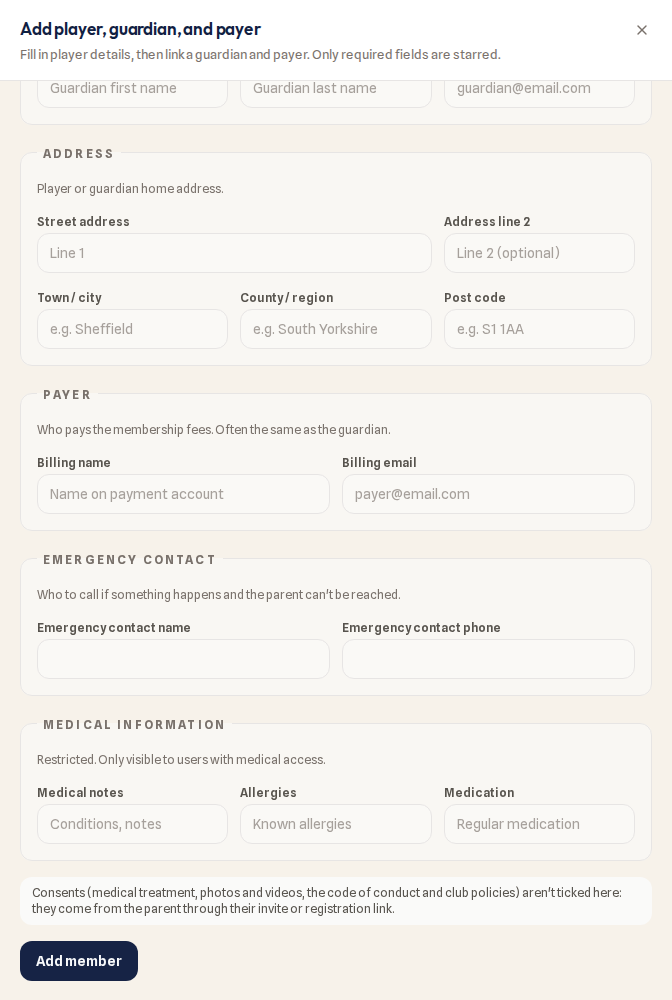
The form opens in a drawer. Only the starred fields are required: the child’s first and last name.
- 2
Fill in the player details
Date of birth and gender let Playlee check team eligibility. Choose a team, or leave “No team yet”. Tick “Override team age/gender eligibility (special dispensation)” only when the club has agreed an exception.
- 3
Add the parent under “Guardian / emergency contact”
Their first and last name, and an email if you can see contact details. If the parent already has a record or a Playlee account at the club, the child is linked to it rather than creating a second parent.
- 4
Check the payer
Under “Payer”, the billing name and email default to the parent. A parent who already pays the club keeps the same payer for this child; type a different billing email only for a deliberate second payer.
- 5
Add an emergency contact
Under “Emergency contact”, enter who to call if something happens and the parent can’t be reached: “Emergency contact name” and “Emergency contact phone”. You see this section only if you can see contact details.
- 6
Add medical information if you have it
Medical notes, allergies and medication. This section is restricted: only people with medical access see it.
- 7
Choose “Add member”
The player is added, with an active registration for the season.
Consents come from the parent
Consents come from the parent
Staff can’t tick consents here: medical treatment, photos and videos, the code of conduct and club policies come from the parent through their invite or registration link. Until the parent has done that, nothing is recorded for them.
Send the parent their invite
- 1
Make sure the parent has an email or mobile number
On the player’s record, open Membership → Guardians & emergency contacts. If no parent there has one, add the parent with a mobile number using “Add guardian or emergency contact”.
- 2
Select the player on People → Players and choose “Send app invites”
The invite goes to the child’s primary guardian and is tied to this child, so the parent’s app links to the existing record instead of creating another. Anyone already on the app or already invited is skipped, with the reason shown.
What adding a player does, and doesn’t do
- The player gets an active registration for the active season, so they count in Registrations like any family that registered online.
- It does not assign a fee plan or create an invoice. Assign a fee plan in Payments if the player should pay.
- It sends nothing to the parent: no email, text or notification. Send the app invite when you are ready.
- It records no consents.
If you see “Possible duplicate players”
- 1
Read the notice on People → Players
It lists children with the same name and date of birth on more than one active record, usually because a parent also registered online. If they are different children, ignore it.
- 2
Choose “Review and merge”
Pick the pair and the record to keep. The preview shows what moves to it: invoices, fees, documents, attendance, registrations, team places, parent links and notes. Nothing is deleted and nothing is sent to the family.
- 3
Clear anything that blocks the merge
For example, if both records have a live registration for the same season, cancel one first; if they have different payers, sort out the payer in Payments first.
- 4
Choose “Merge these records”
You can undo it under Recent merges. Only club owners, admins and registrars can merge.
What the parent sees after they claim
- Once the parent accepts the invite and signs in with the invited email or mobile number, the child appears in their family in the Playlee app, with the team you chose.
- They can then reply to events and see club messages for that team, and give the consents the club asks for.
- Nothing is due in Money until the club assigns a fee plan.
Common questions
Where did the registration desk go?
The staff registration form on People → Registrations has been retired. Add a player by hand instead; Registrations still lists every registration for review.
It says to create an active season first.
A player is added to the active season. Set one up or make one active under your season settings, then add the player again.
Can a coach add a player?
No. Club owners, club admins and registrars add players. A coach can ask one of them, or share the team’s signup link with the family.
The parent registered online too, and now the child is listed twice.
Use “Review and merge” from the “Possible duplicate players” notice. If both records have a live registration for this season, cancel one first.