
Add players yourself and how parents claim them
Type or paste your players’ names to fill your squad before parents join. When a parent joins with the team link, their child is matched to the name you added, and anything uncertain comes to you.
Reviewed 14 November 2026 · Verified for Clubs web and app · September 2026
Before you start
- Coach or team manager access to the team, or club admin access
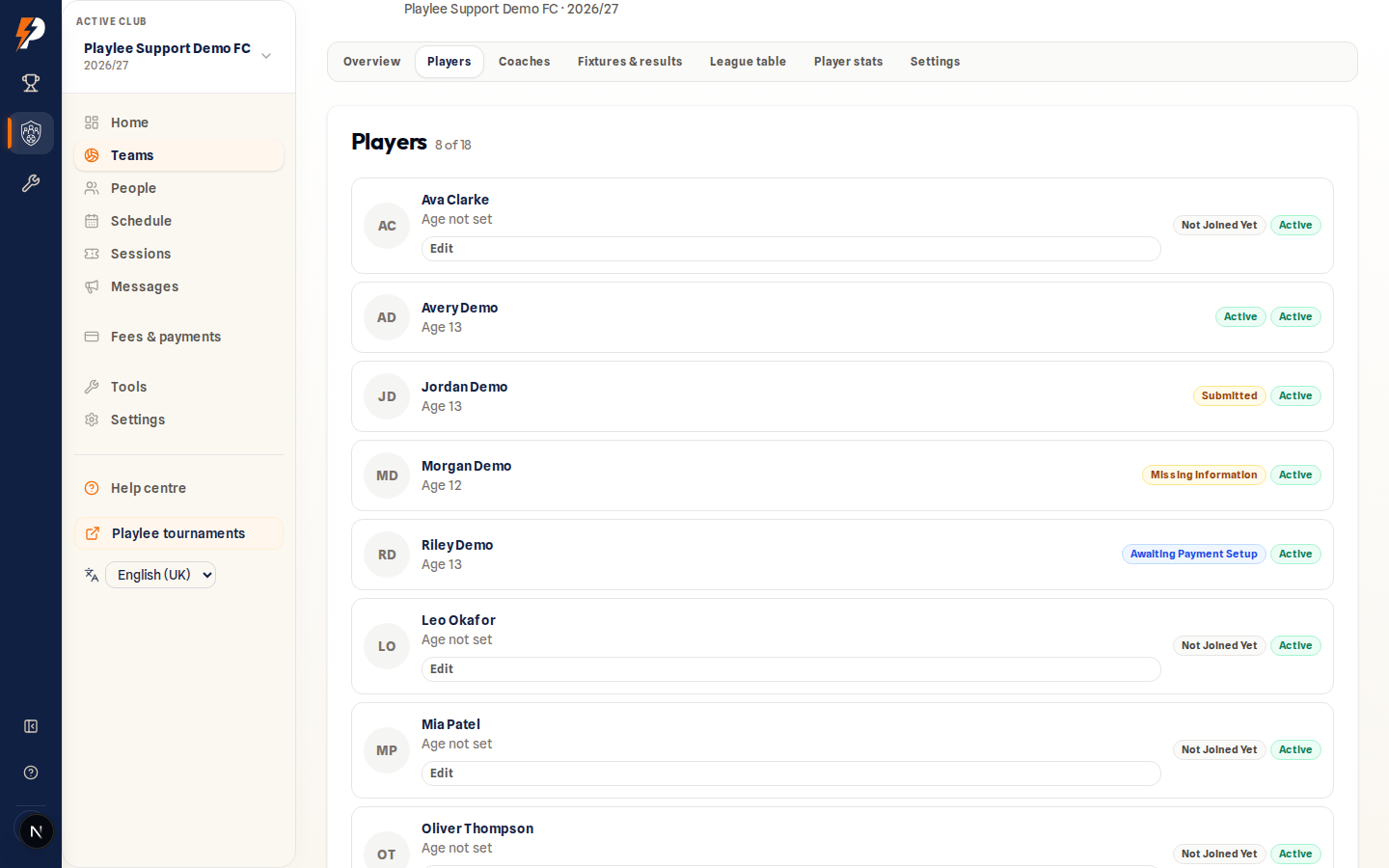 Open full-size screenshot
On this page
Names now, details from the parents later
You can put your squad together on day one by adding the players’ names. You are never asked for a date of birth, an address or a phone number: those come from the parents when they join with the team link.
A player you added shows “Not joined yet” until a parent’s child is matched to them. Nobody is told when you add, rename or remove a player.
Add your players
- 1
Open the team’s Players tab
In Playlee Clubs on the web, open Teams, choose the team, then Players. The team’s coaches and team managers see the form, and so do the club’s owners, admins and registrar. Anyone else who can see the tab sees only the “Not joined yet” badge.
- 2
Type or paste the names under “Add players by name”
The form is below the player list. One name per line, first name then last name. Copying a list from a spreadsheet or a group chat works too.
- 3
Add them all at once
The whole list goes in together, or not at all. If a line has a problem, such as the same name twice or a player who is already in the team, Playlee names the line (“Line 3: …”) so you can fix it, for example by adding an initial, and add the list again.
- 4
Edit or remove while they haven’t joined
Open Edit under the player’s name to change the first or last name and Save, or choose Remove to take them off the team. Nobody is told, and past availability and line-ups keep the name. Once a parent’s child is matched to the player, the details are the family’s to change.
How parents claim a player
- Parents join with the team link or code as usual and register their own child.
- If the child’s first and last name are exactly the name you added, and only one player in the team fits, the child is matched to that player straight away. You see it under “Joined from your list” for 14 days.
- If the name is close but not certain (Ollie T and Oliver Thompson, say, a typo, a first name only, or two players with the same name), the child joins as a new player and you see “Same child?” on the Players tab. Choose Same child to join up their records, or Different children to keep both. Nobody is told either way.
- Anything you recorded for that name, such as availability, register marks and line-ups, stays with the child once they’re matched.
- A child who joins and was never on your list simply joins the team, as before.
Fix a wrong match
- 1
Find the match under “Joined from your list”
Matches stay listed there for 14 days, whether the parent joined in the app or in a browser.
- 2
Choose Undo
The name you added goes back to “Not joined yet” and keeps anything recorded before the family joined. Anything recorded since goes with the family’s child, who stays in the team as their own player. Nobody is told.
Common questions
I have twins, or two players with the same name.
A team can’t have the same name twice, so add an initial to tell them apart, as the form suggests. Twins with different first names are matched like anyone else. Whenever more than one player could fit a child’s name, nothing is matched automatically: you are asked.
Can I add a date of birth or a phone number?
Not here. Parents add their own child’s details when they join, which keeps them accurate and theirs.
Can I do this in the app?
Not yet. Adding players by name comes to the Playlee app in its next version. Until then, add them on the web; parents can join with the team link from the app or a browser either way.