
Availability deadlines, reminders and picking a squad
Set an availability deadline or a player limit, understand the automatic reminders, chase families who have not answered, and pick and publish a squad.
Geprüft am 26. September 2026 · Getestet mit Clubs web and app · September 2026
Bevor du loslegst
- Coach, team manager or club admin access to the team
- Families using the Playlee Clubs app, for push notifications
 Screenshot in voller Größe öffnen
Auf dieser Seite
Invite players to an event
- 1
Open Squad selection
Permitted team staff open the event in Schedule. Squad selection must be enabled; selected-audience events have an invite list.
- 2
Select named invitees
Tick the players to invite and save the new invites.
- 3
Check visibility and delivery
New invitees gain event access. Their families can receive a push and configured invite email when the event is parent-visible; hidden events send no family notification.
Remove players from an event invite list
- 1
Open the selected-audience event
Open its invited players and squad panel as permitted team staff.
- 2
Remove the named invitees
Untick the relevant invited players and save the removal.
- 3
Check the result
Their selected or reserve picks are also removed and event access follows the remaining invite list. Removal sends no notification.
Publish the current event squad
- 1
Review the current picks
Open the event Squad selection panel and check the selected players and reserves.
- 2
Choose notification scope
Decide explicitly whether to notify invited players who were not selected, then Publish.
- 3
Check the result
Picks become visible to families. A parent-visible event can send selected/reserve notifications and optional not-selected pushes; a hidden event sends none. Publishing does not change picks or fixture results.
Clear an event squad selection
- 1
Open the event squad panel
Use Schedule and the selected event as permitted team staff.
- 2
Choose Reset
Confirm clearing the current selected/reserve picks and publication.
- 3
Check what remains
The event and its invite list remain. This does not cancel the event or send a notification.
How availability works
Parents answer Going, Maybe or Can't go for each child on each event. Staff see the answers on the event, and anyone who has not answered shows as "No answer".
The deadline, player limit, waiting list and squad tools are optional. A club admin can switch each one off for the whole club in Settings → App settings (Availability deadlines, Player limits, Waiting lists, Squad selection). Squad selection can also be turned on or off for individual teams there.
Set a deadline or a player limit
- 1
Open the event and expand Availability
On the web this section is in the add and edit forms in Schedule. It only appears while the matching App settings switches are on.
- 2
Set an Availability deadline
The deadline must be before the start. After it passes, parents can still say their child can't make it, but can no longer answer Going or Maybe. On a repeating event, each date gets the same deadline before its own start.
- 3
Set a Player limit if places are limited
When the limit is reached, later "Going" answers are refused with "This event is full. Message the coach." unless "Waiting list when full" is ticked. Staff can still mark a player as going over the limit. With the waiting list on, they queue in order and move up automatically if someone drops out.
- 4
Save
The event list shows the going count against the limit, and anyone waiting.
Reminders and chasing
- 1
Let the automatic reminders do the first ask
For visible, scheduled matches and training sessions, Playlee sends an "Availability needed" push five days before to families who have not answered, then chases the ones still unanswered two days before. Nothing is sent between 21:00 and 09:00; those reminders go out after 9am. No reminders go out once the availability deadline has passed.
- 2
Chase manually when you need answers sooner
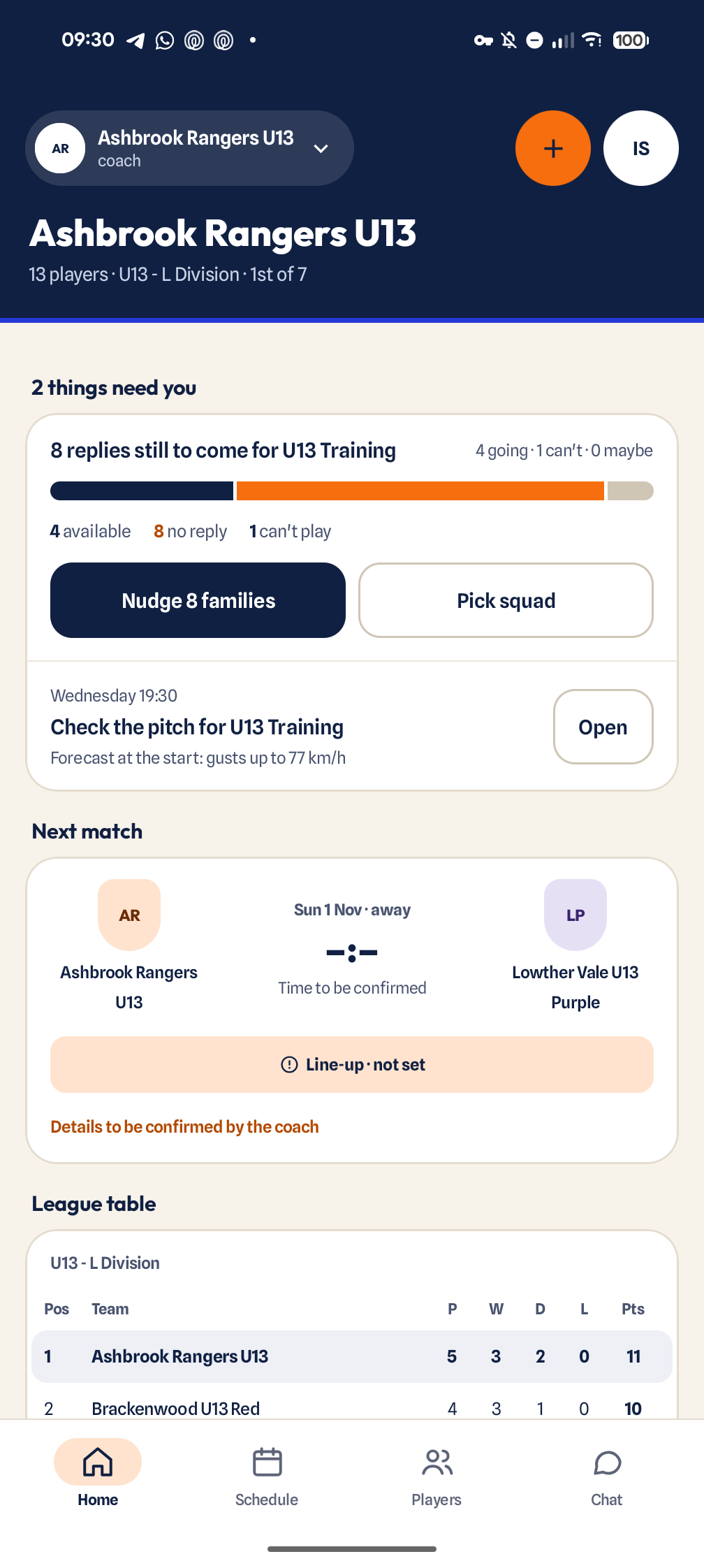
In the app, open the event from the Schedule tab and use "Send availability reminder" on the responses screen. If your club runs a single team, the web Home page also shows a "Chase" button next to each upcoming event in "Coming up".
- 3
Wait 24 hours before chasing again
Each event can be chased once every 24 hours. A manual chase also counts as the five-day automatic ask, so families are not asked twice in a row.
Pick and publish a squad
- 1
Decide who is invited
In the event form, "Who's invited" offers "The whole team" or "Selected players". With selected players, only the players you tick (and their families) see the event and are asked. Newly invited players' families get a "You're invited" push.
- 2
Open Pick squad on the event
On the web it appears on matches, and on events for selected players, in Schedule. Each player shows their availability answer.
- 3
Mark each player Selected or Reserve
Use Save picks to save without telling anyone yet.
- 4
Publish squad
Families of selected players get a "Squad picked" push. Reserves get a push too. Tick "Also tell those not picked" if you want everyone else to hear they were not selected this time. Use Publish again after changes, or Clear squad to start again.
Before matchday
- The event is visible to parents, if families need to answer.
- The deadline is early enough for you to plan, but after families are likely to know.
- Anyone showing "No answer" has been chased, or contacted directly.
- The squad is published, if you use squad selection.
Common questions
Why can't a parent say their child is going?
Either the availability deadline has passed or the player limit has been reached. After the deadline, parents can only say their child can't make it (not Going or Maybe). When the limit is full, "Going" answers join the waiting list if it is switched on.
Why didn't parents get the availability reminder?
Reminders are push notifications, so the family needs the app installed, notifications allowed, and Events switched on in You → Notifications. Reminders are not sent for hidden, cancelled or already started events, after the deadline, or overnight between 21:00 and 09:00. They also skip families who have already answered.
Why does Chase say I have to wait?
Families can be chased once every 24 hours per event, and the message tells you roughly how long is left. A manual chase or the automatic five-day ask both start that 24-hour gap.
Why don't I see Availability deadline, Player limit or Pick squad?
A club admin may have switched that feature off in Settings → App settings. Squad selection can also be switched off for your team only.
Can parents see who else is available?
Only if the club turns on "Parents can see the team's availability" in Settings → Permissions. Otherwise only coaches, team managers and admins can see the team's answers.
Chase unanswered event availability
- 1
Use the team dashboard Chase or schedule Chase no answers control
Select a current parent-visible future event that your native role can nudge. Review the current native unanswered-family account count. Hidden, cancelled or started events and the 24-hour cooldown refuse. No recipients starts no cooldown.
- 2
Confirm the manual reminder audience
This attempts events-channel push only, respecting family notification settings; it sends no manual email/SMS and changes no availability answer or payment. Push occurs before the reminder timestamp/audit, so a later failure can follow delivery. Native later reads, writes and audit are not an atomic preview fence. Reconcile the original operation and current app record before repeating an uncertain result.
Ask current staff to confirm details or record a result
- 1
Use the native staff reminder controls
Select a current event within your native schedule-admin club context. Before its start choose confirm details; at or after its start choose record result. Review the current team coaches/managers count, excluding your own account. No recipients starts no cooldown.
- 2
Confirm the per-reason reminder
This attempts events-channel push only, respecting notification settings. It creates no email/SMS, score or payment. The native 12-hour per-event/per-reason cooldown is claimed before delivery; a later delivery/audit failure can leave that cooldown active. Native later reads, writes and audit are not an atomic preview fence. Reconcile the original operation and current app record before repeating an uncertain result.