
Use the club app for events, availability and updates
Find your team, open events, respond for a child, review plans, and troubleshoot a notification that opens the wrong screen.
Geprüft am 1. September 2026 · Getestet mit Clubs web and app · September 2026
Bevor du loslegst
- The Playlee Clubs app
- A login linked to the family or staff record
 Screenshot in voller Größe öffnen
Auf dieser Seite
What the app brings together
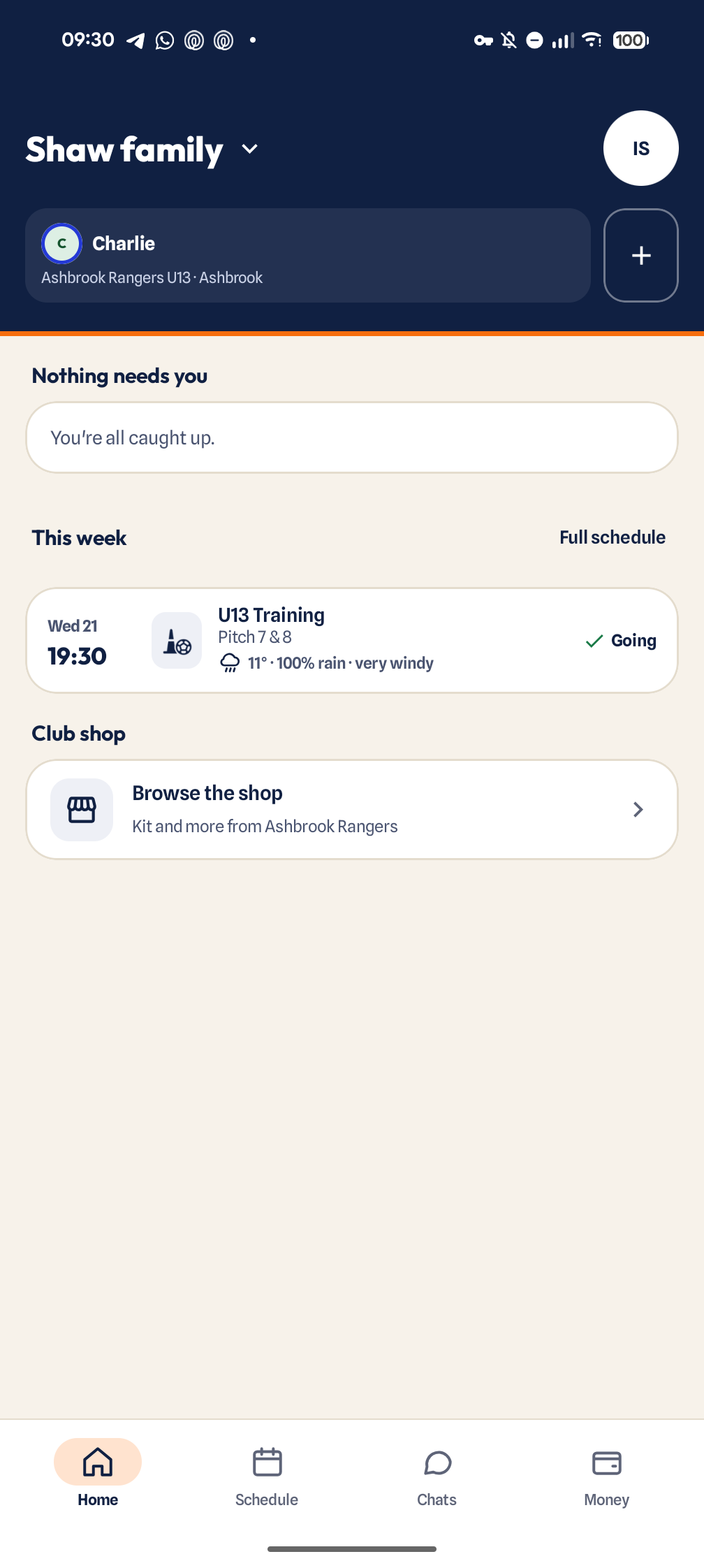
Families have four tabs: Home, Schedule, Chats and Money. Home is the starting point for anything that needs you, this week’s events and club news. Schedule lists every event, and Money shows fees attached to the family. Staff see the tools allowed by their club role, for example a coach gets Players instead of Money.
Older versions of the app called Home the Team tab, Money the Plans tab and Chats the Messages tab. If your tabs look different from these pictures, update the app.
Use the main flows
- 1
Choose the right child or team
Tap the name at the top of the screen to switch child, team or club. Check it before responding or opening a live match.
- 2
Open an event to respond
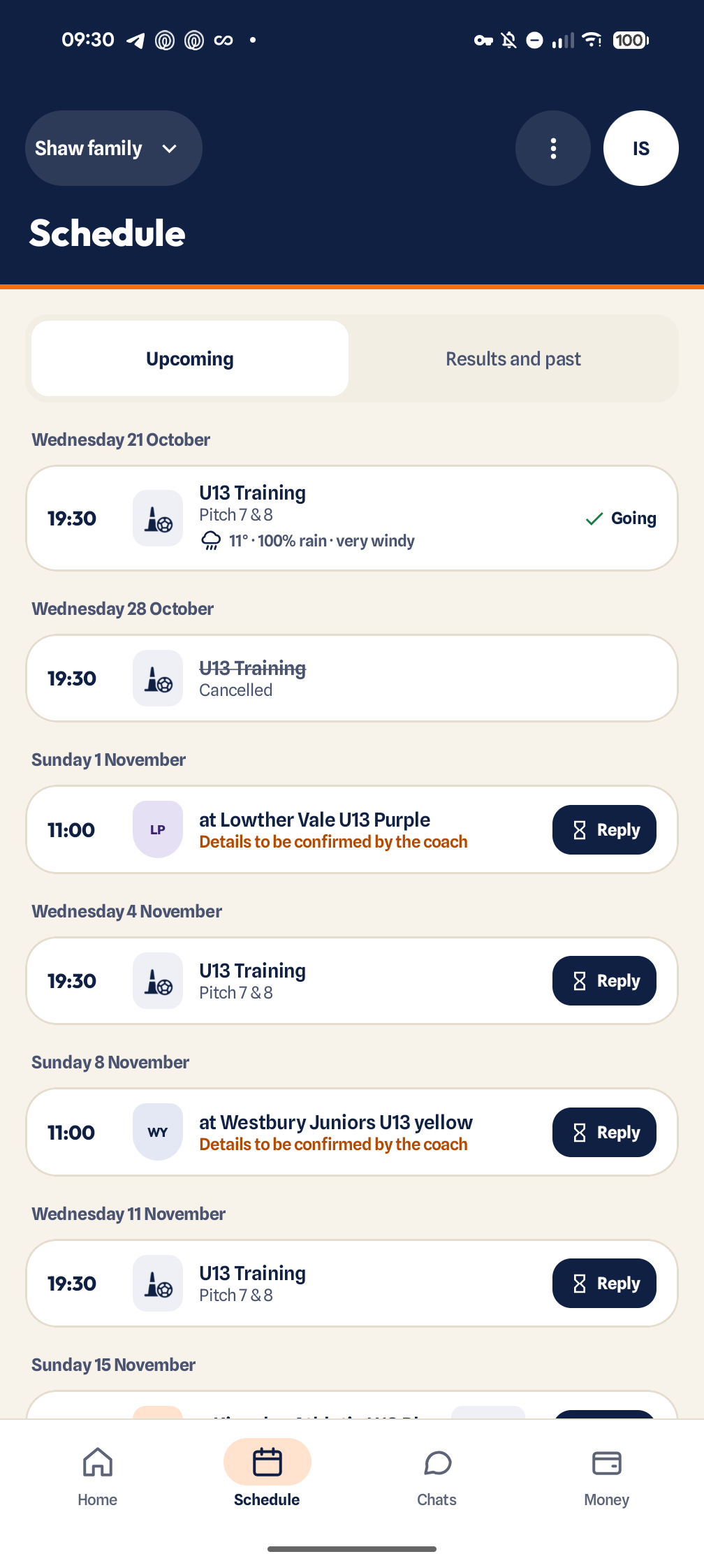
Open Schedule, or tap an event on Home, then choose Going, Maybe or Can’t go. Availability is stored against the selected child and event.
 Screenshot in voller Größe öffnen
Schedule lists every upcoming event. Reply marks the ones still waiting for your answer, and cancelled events are struck through.ANDROID · aufgenommen am 19. Oktober 2026 - 3
Check what your reply says
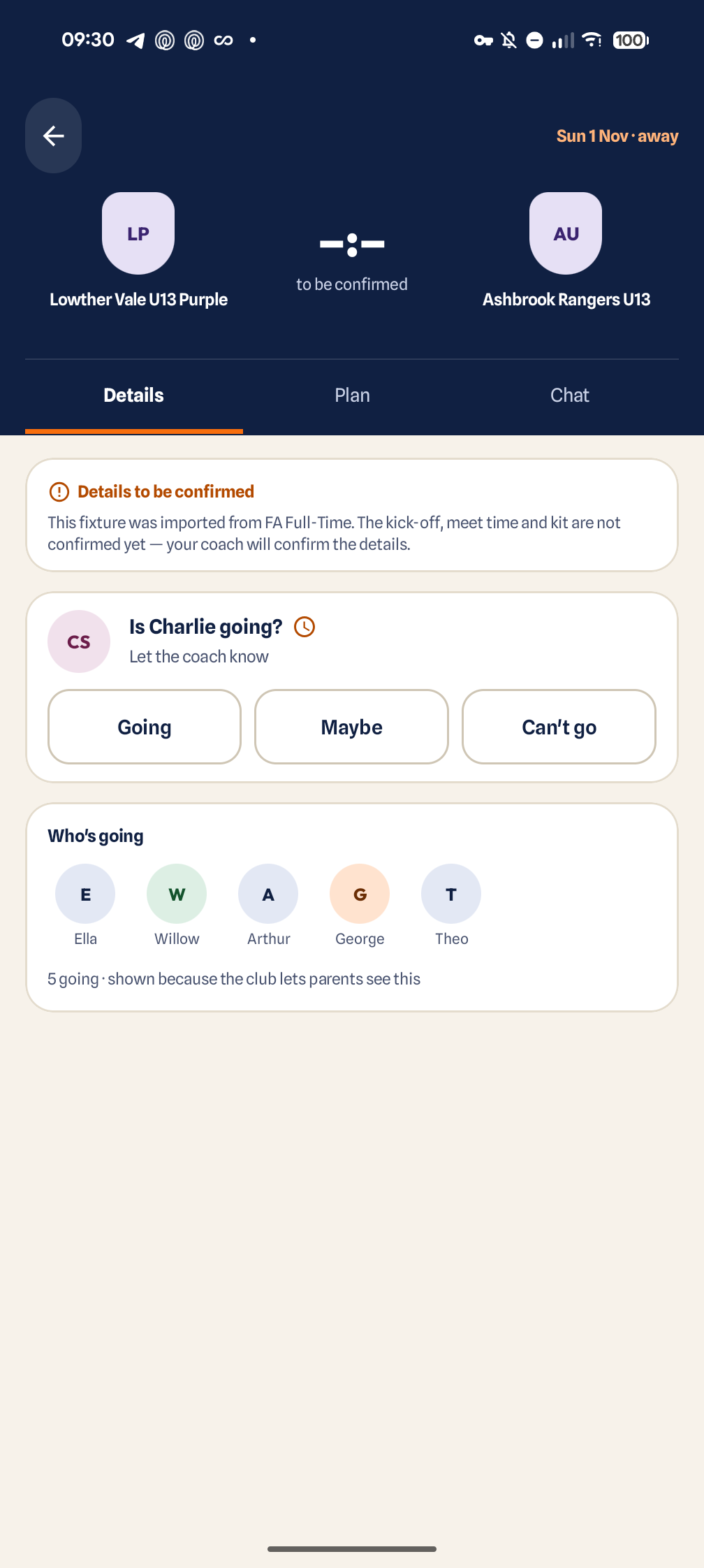
The event shows your answer and, if the club allows it, who else is going.
 Screenshot in voller Größe öffnen
Open an event to answer Going, Maybe or Can’t go for your child. A fixture imported from FA Full-Time says so until the coach confirms the details.ANDROID · aufgenommen am 19. Oktober 2026 - 4
Open Money to review fees
Check the child, amount and due state before contacting the club.
- 5
Open live match notifications directly
A current notification should deep-link to the live match rather than stopping at the Home tab.
- 6
Refresh and retry if a live banner shows a connection error
If the event still fails, tell the club which team, match and device you used.
If something is missing
- The app is up to date.
- You are signed into the invited account.
- The expected child and club are visible.
- Notifications are enabled for Playlee.
- The match is still live if opening a live banner.
Post a team poll
- 1
Open the current controls
Open the team chat and its poll composer.
- 2
Review and confirm
Enter the question, one answer per line, single/multiple and anonymous/named voting. Choose an optional local closing time and explicit time zone, then post.
- 3
Check the effect
Posting can add a chat poll message and send eligible families a push; delivery is not guaranteed.
Save your poll vote
- 1
Open the current controls
Open an available team poll.
- 2
Review and confirm
Choose the permitted answers and save your vote; single-answer polls allow one choice.
- 3
Check the effect
This replaces your previous answers under the current anonymous/named setting.
Clear your own poll vote
- 1
Open the current controls
Open a poll that still permits voting.
- 2
Review and confirm
Choose Clear vote and confirm.
- 3
Check the effect
Only your choices are removed; other votes and the poll remain.
Close a team poll
- 1
Open the current controls
Open a poll you can manage.
- 2
Review and confirm
Choose Close poll and confirm.
- 3
Check the effect
Further voting stops; existing results remain and no message is sent.
Delete a team poll
- 1
Open the current controls
Open a poll you can manage.
- 2
Review and confirm
Choose Delete poll and confirm.
- 3
Check the effect
The native action marks it deleted and hides its linked chat message; stored rows and votes remain.
Post a club or team announcement
- 1
Open the current controls
Open club announcements.
- 2
Review and confirm
Choose the permitted team or club scope, enter the title/body and publish.
- 3
Check the effect
Eligible families may receive a push with the title and body excerpt.
Archive an announcement
- 1
Open the current controls
Open announcements and the named published item.
- 2
Review and confirm
Choose Archive and confirm.
- 3
Check the effect
It is archived without sending a new notification.