
The platform fee, payouts and failed payments
Check sponsor and organisation invoice statuses in Accounts, separately from family fees in Money. Learn about online fees, payouts, failed payments, refunds and reminders.
Geprüft am 26. September 2026 · Getestet mit Clubs web and app · September 2026
Bevor du loslegst
- Club owner, club admin or treasurer access
- Stripe connected in Settings → Money for online payments
 Screenshot in voller Größe öffnen
Auf dieser Seite
Check sponsor and organisation invoices in Accounts
- On the web, open your club, then Accounts and Invoices. Find the sponsor or organisation and invoice reference; check its status, amount, due date and any recorded payment date. These invoices are separate from family fees in Money. The Money screenshot in this guide shows family-fee management.
- Draft: saved but not issued. Sent: issued and not yet recorded as paid; it is overdue if its due date has passed. Paid: payment has been recorded online or manually for an offline payment; the date alone does not prove online collection. Void: cancelled.
- To raise one, choose Raise invoice in Accounts, Invoices. Enter the organisation, description, GBP amount, income category and optional due date. Review recipient details and choose Draft or issue. A draft sends nothing; issuing with an effective recipient attempts an invoice email with a PDF and payment link. Creating an invoice does not collect money.
How the money works
Online payments go through the club’s own Stripe account. Playlee has no monthly fee and no contract. The only charge is a platform fee of 3.25% + 20p on each online payment, and it already covers Stripe’s card and Direct Debit processing. Parents pay exactly what the club sets. The fee comes out of that payment before the money reaches the club.
The club owns its collections. Failed payments and chargebacks are borne by the club, never by Playlee. Nobody has to pay online: record cash and bank transfers as paid and no fee is charged on them.
Where to go
- Money (web)
- The page is titled Payments. It has the dashboard tiles, payment plans and the invoice list with manual reconciliation, refunds and payer links.
- Settings → Money
- Connect Stripe, open the Stripe dashboard, choose the collection mode, offer Bacs Direct Debit, and read the retry rules.
- Settings → Notifications → Payments
- Receipts, failed payment notices, upcoming reminders and two-day overdue reminders to payers.
- App → Money tab (club admins and treasurers)
- Needs you, Due, Overdue and Received lists, Ask to pay again, Send reminders, Mark paid offline and Record cash or a bank transfer.
The platform fee in practice
- 3.25% + 20p on each online payment, taken from the payment. On a £30 payment the fee is £1.18 and the club receives £28.82.
- When several fees fall due for the same payer at once, they are usually collected as one payment, so the 20p is charged once.
- No fee is charged on cash, bank transfers or anything else you record by hand.
- There is no separate Stripe fee on top. The platform fee includes it.
Payouts
- Money collected online goes to the club’s own Stripe account and is paid out to the club’s bank automatically every day, after Stripe’s standard holding period.
- Direct Debit payments take a few working days to confirm, so they reach the club later than card payments.
- Use the Stripe dashboard button in Settings → Money to see payouts and the club’s Stripe balance.
Record, refund and chase payments
- 1
Mark a cash or bank transfer payment as paid
Open Money, find the invoice in “Invoices and manual reconciliation” and expand it. Under Manual reconciliation, choose the payment type (cash, bank transfer, waiver, discount, injury pause, write off, correction or external refund), enter the amount and a reference, then press Reconcile. In the app, open the Money tab and use Record cash or a bank transfer, or Mark paid offline on an overdue payment.
 Screenshot in voller Größe öffnen
The payments dashboard highlights expected, outstanding and failed amounts before showing the affected player records.WEB · aufgenommen am 1. September 2026 - 2
Find payments that need attention
The dashboard shows Overdue and Failed / retrying totals. In the invoice list, use the Failed or Overdue filter. Rows that need chasing carry a “Needs follow-up” badge and a line explaining the retry state, for example “Retry scheduled, attempt 2 of 3” or “Collection failed”.
- 3
Check whether the payment method itself has died
If a row says “Direct Debit needs re-authorising” or “Card needs re-authorising”, retries can’t work. The parent has to set up a new method in the app. You can also press Send payer link to email them a secure payment link for that invoice.
- 4
Chase from your phone
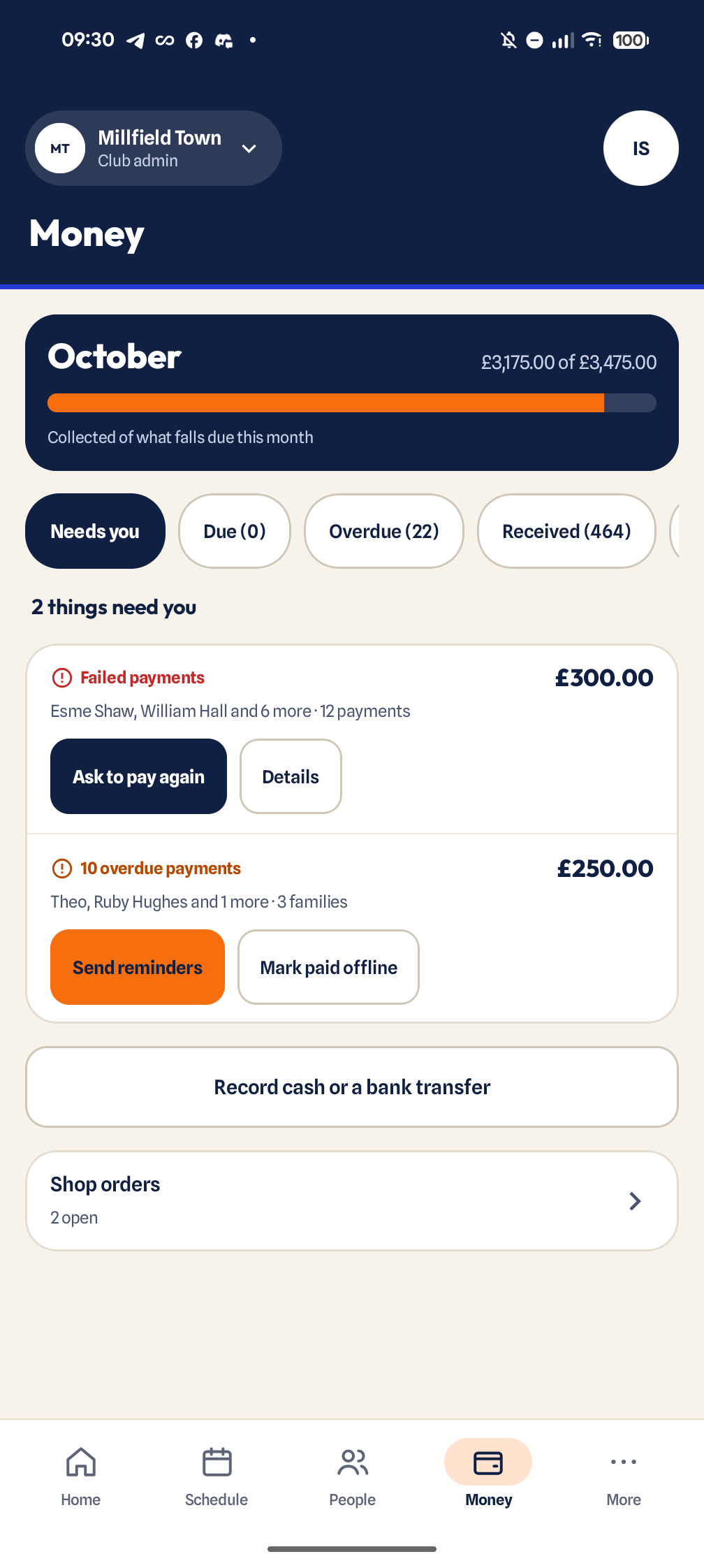
In the app, open the Money tab. Needs you groups failed and overdue payments: use Ask to pay again or Send reminders, or open the Overdue list.
 Screenshot in voller Größe öffnen
The club Money tab shows this month’s collection, then failed and overdue payments with Ask to pay again, Send reminders and Mark paid offline.ANDROID · aufgenommen am 19. Oktober 2026 - 5
Refund an online payment
Expand a paid invoice on the Money page, enter an amount (leave it blank for the full amount) and a reason, then press Refund via Stripe. The money goes back to the parent’s card or bank. The club’s share is returned from its Stripe balance, and Playlee returns its fee in proportion to the amount refunded. The child’s plan and later payments are not changed.
- 6
Cancel a charge that should not be paid
Use Void unpaid invoice with a reason. It only works on invoices that haven’t been paid.
How automatic retries work
- Cards: up to 3 attempts, retried after 2, 3 and then 5 days while the payer has a saved card.
- Direct Debit: the bank reports a failure days after the attempt, so it is retried up to 2 times, 4 days after each failure is reported.
- A Direct Debit still settling after about 8 days is flagged as “Direct Debit delayed” so you can check it in Stripe.
- If retries run out and the plan has “Retry failed recurring payments” switched on, Playlee tries again once a month alongside anything else then due.
Treasurer checklist
- Stripe shows as enabled in Settings → Money, with payments and payouts enabled.
- Bacs Direct Debit is switched on if you want to offer it.
- Every cash and bank transfer payment has been reconciled with a reference.
- Failed and overdue invoices have been reviewed this week.
- Payers whose card or Direct Debit needs re-authorising have been contacted.
Common questions
Who pays if a Direct Debit bounces?
The club. Playlee never carries failed payments. Nothing is received, so there is nothing for Playlee to take a fee from. Playlee retries automatically and the invoice stays open for you to chase or reconcile.
What happens with a chargeback?
If a parent disputes a payment with their bank, the disputed amount is taken back from the club’s Stripe balance. Chargebacks are borne by the club, never by Playlee.
Why did we receive less than the fee we set?
The 3.25% + 20p platform fee is taken from each online payment before it reaches the club. Stripe processing is included in it, so there are no other deductions.
Why was I charged 20p?
The 20p is the fixed part of the platform fee on each online payment. It comes out of the club’s share, not the parent’s. If several fees are collected in one payment, it is charged once.
A parent paid cash. Why does it still say unpaid?
Cash never passes through Stripe, so someone has to reconcile it. Use Reconcile on the web or Record cash or a bank transfer in the app’s Money tab and the invoice will show as reconciled.
Can we run the club without taking payments online?
Yes. Set the collection mode in Settings → Money to Manual and offline reconciliation, or use the Manual / offline only billing type on a plan, and record payments as they come in.
How do I refund someone who paid cash?
Refund Stripe only works for online payments. Hand the money back yourself, then record it on the invoice with the External refund type so the books match.
When does the money reach our bank?
Stripe pays out automatically every day, after its standard holding period. Direct Debit payments are confirmed a few working days after collection before they can be paid out.
Request a one-off team payment
- 1
Open the current app controls
Open the team payment request controls and choose all players or named selected players.
- 2
Review and confirm
Enter the label, per-player amount in the current club currency and due date. Confirm creation of the one-off plan and invoices; current-season active players without payers are skipped, with native advance-notice steps and no direct online charge.
Choose who covers the payment fee
- 1
Open the current app controls
Open the team payment fee controls when the native rollout enables them for your club.
- 2
Review and confirm
Choose whether the club absorbs the Playlee payment fee or the payer pays it on top. Save for new checkouts; existing invoices and payments are unchanged.
Send selected payment reminder emails
- 1
Open current outstanding payments
In the native app open the club Payments list and select Send reminder for an outstanding invoice. In this guided flow choose named current outstanding payments; no paid history or arbitrary IDs are accepted.
- 2
Review current recipients and amounts
Review the exact saved destinations privately, base amounts and the native fee-add-on disclosure, and the first-five display plus total. All selected destinations are bound, including those not displayed. Missing saved email is skipped. No charge, SMS or push is requested.
- 3
Confirm and check processing
The native action processes chunks of 20 and rechecks the shared 24-hour reminder cooldown. Its timestamp can be consumed before delivery fails or is suppressed. Processed and sent counters do not verify email delivery; partial or uncertain results need checking before repeating.
Add a bookkeeping bank or cash account
- 1
Use Accounts Settings bank accounts
Enter the account name, bank/cash kind, opening balance in GBP, optional opening calendar date and masked last-four details. Blank opening amount means zero. Discovery reads existing accounts without creating presets.
- 2
Confirm the ledger-only addition
This creates a bookkeeping account only, not a real bank account, bank connection, transfer, charge or message. Native later reads, primary changes, audit and revalidation are separate phases; reconcile the original operation and current app record before repeating an uncertain result.
Replace a bookkeeping opening balance
- 1
Use the current Accounts bank account opening-balance control
Choose the current live account and review its saved starting balance before entering the replacement GBP amount and optional date. Blank amount sets zero; blank date clears the opening date.
- 2
Confirm the changed books
Historical entries remain, while calculated books reflect the new starting balance. No actual bank movement or message occurs. Native later reads, primary changes, audit and revalidation are separate phases; reconcile the original operation and current app record before repeating an uncertain result.
Archive a bookkeeping account
- 1
Use Accounts Settings to archive the current account
Choose an existing live account and review its current name/kind. The native action refuses archiving the last live account.
- 2
Confirm historical-record retention
Archiving removes it from new bookkeeping selections while retaining historical entries and balance records. It does not close a real bank account, transfer money or send a message. Native later reads, primary changes, audit and revalidation are separate phases; reconcile the original operation and current app record before repeating an uncertain result.
Select a saved bank-feed account
- 1
Find the native control
Open Accounts settings and find the existing bank-feed connection.
- 2
Enter and review the intended change
Choose an account already saved by the provider picker, checking its name, last four digits and currency. This flow does not fetch provider accounts.
- 3
Check the effects and result
The native action creates or reuses a bookkeeping bank account, resets the sync cursor and clears the old error; later sync can backfill history. It does not open a real bank account, transfer money or make a provider request now.
Remove a saved bank-feed connection
- 1
Find the native control
Open Accounts settings and select the named saved connection.
- 2
Enter and review the intended change
Review revoking it in Playlee and erasing its saved access and refresh secrets. Imported statement lines, bookkeeping account and history remain.
- 3
Check the effects and result
This action does not send a provider consent-revocation request, transfer money or send messages.
Replace local collection settings
- 1
Find the native control
Open club Settings and the payment collection settings.
- 2
Enter and review the intended change
Enter all intended local values: manual or Stripe collection, saved account ID, onboarding status, charges/payouts enabled and Bacs offered. Optional blanks clear saved values.
- 3
Check the effects and result
These are local assertions used by future checkout, not provider verification or a Connect onboarding request. No immediate charge, payout, bank transfer or message occurs.
Record offline money in the club books
- 1
Find the native control
Open Accounts, then Transactions, and use the native money-in or money-out control. An active season and writable Accounts access are required.
- 2
Enter and review the intended change
Enter a positive GBP amount and calendar entry date, choose a current category for its direction and a current bookkeeping bank/cash account, optionally a team, then description and counterparty. Dates inside the locked books window are refused.
- 3
Check the result and effects
This records offline bookkeeping only: it does not collect, transfer or refund money. A new named counterparty can be created and the season follows the entry date. Receipt upload remains in the app.
Replace a stored ledger entry
- 1
Find the native control
Open Accounts Transactions and select the current unlocked stored ledger record. Derived Playlee payment rows are not editable here; the bounded chooser refuses an incomplete 200-row ledger window.
- 2
Enter and review the intended change
Enter every intended replacement direction, positive GBP amount, calendar date, category, account, optional team, description and counterparty. Both old and new dates must be outside the locked window.
- 3
Check the result and effects
The native action replaces the bookkeeping details, links or creates a named counterparty and applies date-based season stamping. No new receipt upload or actual money movement occurs; separate audit failure can leave changes saved.
Delete a stored ledger entry
- 1
Find the native control
Open Accounts Transactions and select the current unlocked stored ledger record. Derived Playlee payment rows cannot be deleted through this control.
- 2
Enter and review the intended change
Review permanent deletion of this bookkeeping history and the amount/date shown. The bounded selector refuses an incomplete 200-row ledger window.
- 3
Check the result and effects
The native action also attempts receipt-file cleanup. It does not refund or transfer money; record deletion, cleanup and audit can be separate effects.
Retry your own saved-method invoice payment
- 1
Open Family payments
In the Playlee app, choose your current club invoice and Retry now. The guided menu includes your due, retrying or failed invoices; unavailable collection states can still refuse. Review the base amount, fee add-on, total, currency and saved payment method.
- 2
Approve the immediate payment attempt
Choose Do it only when you want the saved card or Direct Debit charged now. No new mandate or missing consent is inferred. The native writer claims current invoice and method state; authentication or a missing method may require payment checkout in the app instead.
- 3
Check processing and notifications
Processing is not confirmed payment. Native receipt or failure emails can use the saved payer email, with conditional push to linked payer accounts; successful collection can rearm other failed invoices for later collection. Provider dispatch, bookkeeping, audit and notifications can finish separately. Open the result link and check the original operation before retrying an uncertain attempt.
Assign a player payment plan
- 1
Open Payments and select the saved people
In the club Payments area choose the current player, saved payer and active plan for the selected native season. A name-only payer choice does not create a new account or record family consent to a new payment method. An older-season selection is refused before approval.
- 2
Review current plan obligations
Review the plan components, dates, rate, current discounts, collection mode and saved notice destination. Native proration, family caps and crossover rules determine eventual invoice amounts; this review does not certify generated totals.
- 3
Confirm and inspect the assignment
Choose Do it. Native assignment can reuse an existing assignment and creates dated obligations that may be collected later. Conditional advance notice can claim its stamp before best-effort email and linked-account push; absent email sends neither. No new obligations or an already claimed notice may send nothing. No immediate provider charge is promised. Check Payments before retrying an uncertain operation.
Record an offline invoice payment or adjustment
- 1
Open the current invoice in Payments
Select the saved invoice and choose the native reconciliation type. Enter the amount in its currency, with an optional private reason and evidence URL. Record an offline payment, waiver, correction or refund already handled elsewhere.
- 2
Review status and possible notifications
Review current due amount, counted adjustments and resulting status. Paid, waived or written-off outcomes can progress registrations and placement. The human review shows current potential registration-approval email destinations and whether this type triggers a receipt notification.
- 3
Confirm the bookkeeping record
Choose Do it. This action records the adjustment; it does not collect, transfer or return money. Registration approvals and delivery can complete separately from the record. If uncertain, inspect Payments and the original operation rather than adding the same adjustment again.
Issue a current draft player fine
- 1
Open the draft fine
In Payments, Fines, choose the saved player draft. Team fine issuance remains in the app in this bounded interface.
- 2
Review the bill and current payer
Review base, admin and processing amounts, currency, due date, payer and saved email/linked-account notice targets. Issuance creates or reuses the native invoice/payment link and can enable future automatic collection from the saved method.
- 3
Issue and check the notice outcome
Choose Do it. The native action sends conditional notice email and best-effort payer-account push; it does not charge immediately on issuance. A later failure can follow the bill or notice. Inspect the fine and original operation before retrying.
Request an original-card club invoice refund
- 1
Open the refundable paid invoice
In Payments select a paid or partially refunded invoice with its saved original card payment. Enter a partial amount in the invoice currency, or leave blank for the remaining refundable base value. Offline payments without a card intent are unavailable here.
- 2
Review the actual provider request
Review current paid/refunded amounts, the remaining base and the native proportional fee add-on. Connected transfer/application-fee reversals follow native policy. The player plan and remaining schedule are retained.
- 3
Request and verify the refund
Choose Do it to invoke the native provider refund. Saved invoice/payment/audit records can follow independently; a processed request is not confirmation that the card refund completed. No email or push is sent by this action. Check the original operation and current record before retrying.
Process a saved session refund request
- 1
Open the session refund request
Open the managed session and select the named participant booking with a saved refund request. The current invoice must have a refundable original card payment; this is separate from cancelling a booking.
- 2
Review the recorded date share
Review the base and provider amounts. A shared multi-date invoice uses the recorded date share when available; otherwise native policy uses the remaining refundable invoice value. Other bookings and the remaining plan schedule stay unchanged.
- 3
Confirm and inspect the result
Choose Do it. The native action requests the refund and clears this booking refund-request flag only after the refund action returns. Provider processing can remain pending. No further cancellation, invite or message occurs. Check the original request and session before another attempt.
Request a paid shop order refund
- 1
Open the paid shop order
In Shop Orders choose the current order with a remaining original card payment. This interface supports GBP orders only; other currencies stay in the app. Enter a partial GBP amount or leave blank for the remaining value, with an optional private reason.
- 2
Review fees and stock effects
Review the total, prior refunds and requested amount. A first full refund returns the fee to the club under native policy without adding extra buyer refund; partial or split refunds keep the fee and use the club balance. Stock is not restocked.
- 3
Request and check the provider outcome
Choose Do it. The provider refund is followed by native order/refund records and a best-effort payment push to the saved buyer account; no email is sent. These phases can complete separately. A processed request is not a final card outcome; check the order and original operation before retrying.
Request an organisation credit note card refund
- 1
Open the issued credit note
In Accounts, Invoices, select an unsettled non-void credit against an invoice paid by Stripe. Native writable Accounts access and the current books-lock date still apply.
- 2
Review the native refund policy
Review the credit and original invoice. A full credit includes the original added card fee; partial credit refunds the credited amount. Existing saved refund requests are reused and checked rather than replaced. Transfer and application-fee reversal rules remain native.
- 3
Request and check settlement
Choose Do it. A pending provider response leaves the credit unsettled; only confirmed success permits native settlement and ledger recording. No email or push is sent. Check the credit and original operation before another request.
Synchronise an existing saved bank feed
- 1
Open the saved Accounts connection
In Accounts settings choose the current active connected bank feed with a saved bank and provider account. This does not connect a new bank or ask for credentials.
- 2
Review the scope before fetching
Review the named saved bank/provider. After confirmation the native action refreshes provider access, fetches statement transactions, deduplicates imports and updates sync/error state. Opening-balance and invoice-bank-details enrichment may follow.
- 3
Sync and inspect the outcome
Choose Do it. Counts, balance and provider outcome are known only after execution; a later failure can follow some imports or saved metadata. No charge, transfer, refund or email/push occurs. Check Accounts settings and the original operation if uncertain.
Replace fines and future collection settings
- 1
Open the current app control
Open Settings, then Fines, as an owner, administrator or treasurer with current Clubs access.
- 2
Review and confirm
Review every replacement switch, notice period, admin fee, processing estimate and fee bearer. Turning team-fine automatic collection on authorises future collection using saved methods; changing it also updates eligible scheduled, due, failed and retrying team-fine invoices. Paid, processing and player-fine invoices remain untouched. This action does not dispatch a charge. Native subsequent reads, writes, audit and any delivery are separate and may partly succeed. Check the current app record before another request.
Add an unissued player or team fine
- 1
Open the current app control
Open Payments, then Fines. With fines enabled, choose Add player fine or Add team fine when team fines are enabled, then the named active subject.
- 2
Review and confirm
Enter the base amount and private offence or note, and review the current currency, admin and processing fees and current season. Adding creates a draft only: no invoice, collection, payment link or notification exists until the fine is separately issued. Native subsequent reads, writes, audit and any delivery are separate and may partly succeed. Check the current app record before another request.
Waive an eligible unpaid fine
- 1
Open the current app control
Open Payments, then Fines, and choose Waive on the named eligible unpaid fine.
- 2
Review and confirm
Review its current amount and invoice status. Paid, processing or partial payment states refuse. Waiving can void an eligible unpaid invoice and revoke its payment links; it does not make a refund or transfer money. Native subsequent reads, writes, audit and any delivery are separate and may partly succeed. Check the current app record before another request.
Cancel an unissued draft fine
- 1
Open the current app control
Open Payments, then Fines, and choose Cancel on the named unissued draft.
- 2
Review and confirm
Review the exact draft subject and amount. Cancellation keeps the historical fine record and creates no invoice, charge, refund or notification. Native subsequent reads, writes, audit and any delivery are separate and may partly succeed. Check the current app record before another request.
Archive a club payment plan
- 1
Use the existing app controls
Open Payments, expand the named payment plan, choose Archive and confirm.
- 2
Review the consequences
This hides the plan from new registrations. Existing assignments and invoices remain; no refund, cancellation or message is added.
- 3
Check the original saved outcome
Only explicit human approval invokes the native action. Reviewed records and later native reads can race, and some primary changes and audits use separate phases. An uncertain result must be checked using its original request rather than repeating the operation.
Mark a club payment plan deleted
- 1
Use the existing app controls
Open Payments, expand the named payment plan, choose Delete and confirm.
- 2
Review the consequences
The native operation marks the plan deleted and retains stored history. It does not cancel assignments, delete invoices, refund payments or send messages.
- 3
Check the original saved outcome
Only explicit human approval invokes the native action. Reviewed records and later native reads can race, and some primary changes and audits use separate phases. An uncertain result must be checked using its original request rather than repeating the operation.
Unassign a player payment plan
- 1
Use the existing app controls
Open Payments, open the named plan profile, find its active player assignment, choose Unassign and confirm.
- 2
Review the consequences
The assignment ends today. Native scheduled or due unpaid invoices dated today or later are voided; other states and paid history remain. An online payment already in progress is not cancelled, and no refund or message is sent.
- 3
Check the original saved outcome
Only explicit human approval invokes the native action. Reviewed records and later native reads can race, and some primary changes and audits use separate phases. An uncertain result must be checked using its original request rather than repeating the operation.
Void an unpaid club invoice
- 1
Use the existing app controls
Open Payments, find the selected scheduled, due or failed invoice, enter its reason and choose Void.
- 2
Review the consequences
Check the player, payer, amount, currency and due date. Native succeeded-payment checks can refuse. Voiding does not cancel a card payment already in progress, refund money or send a message.
- 3
Check the original saved outcome
Only explicit human approval invokes the native action. Reviewed records and later native reads can race, and some primary changes and audits use separate phases. An uncertain result must be checked using its original request rather than repeating the operation.
Record an agreed payment variation
- 1
Use the existing app controls
Open Payments, Add an agreed variation. Choose an active normal plan and enter the agreed email or mobile number, signing-on waiver, first subscription payments waived, any delayed collection date, internal reason and optional offer expiry. Choose Approve variation.
- 2
Review the consequences
Review the current component rates and exact entered contact. This records the club-approved variation for matching contact at a later signup; it is not inferred parent consent, an account or guardian grant. Remaining future collections follow the native plan. Support labels optional expiry in UTC; it does not infer a club timezone. No collection or message runs now.
- 3
Check the original saved outcome
Only explicit human approval invokes the native action. Reviewed records and later native reads can race, and some primary changes and audits use separate phases. An uncertain result must be checked using its original request rather than repeating the operation.
Revoke an unused payment variation
- 1
Use the existing app controls
Open Payments, find the active individual variation and choose Revoke.
- 2
Review the consequences
Confirm the named plan and masked selected contact, then review the full private contact and terms. This prevents an unused variation being applied at signup; arrangements already consumed are not revoked. No refund, collection or message runs.
- 3
Check the original saved outcome
Only explicit human approval invokes the native action. Reviewed records and later native reads can race, and some primary changes and audits use separate phases. An uncertain result must be checked using its original request rather than repeating the operation.
Change who pays a player
- 1
Use the existing app controls
Open the member profile, Admin, expand Change who pays, choose the existing payer and select Change payer.
- 2
Review the consequences
Review the player, named payer and current obligations. Native atomic checks move eligible unpaid and future fees while retaining historical or partly paid invoices with their original payer. Processing or unresolved payments can refuse. Old eligible payment links are revoked; the new payer uses their own method or link. No family access, charge, refund or message is granted by this operation.
- 3
Check the original saved outcome
Only explicit human approval invokes the native action. Reviewed records and later native reads can race, and some primary changes and audits use separate phases. An uncertain result must be checked using its original request rather than repeating the operation.
Raise an organisation invoice
- 1
Use the existing app controls
Open Accounts, Invoices, then Raise invoice. Enter the organisation, description, GBP amount, income category and optional due date. Choose Draft or issue the invoice.
- 2
Review what changes
Blank email or billing address can use the saved organisation contact. Issuing with an effective recipient sends one invoice email with a PDF and payment link; Draft does not send. Review the exact recipient before approving. This can remember organisation contact details and create an invoice, but does not collect payment.
- 3
Check the original result
Only explicit approval starts the native action. Primary bookkeeping, audit and delivery steps can be separate. If the result is uncertain, check the original request; do not create a second operation to repeat it.
Void an unpaid organisation invoice
- 1
Use the existing app controls
Open Accounts, Invoices. On the selected draft or sent invoice, choose Void.
- 2
Review what changes
Check the named invoice and amount. Voiding stops the page accepting new payments. It does not cancel an online payment already in progress, and a later confirmed payment may still mark it paid. It does not refund money or delete earlier ledger records.
- 3
Check the original result
Only explicit approval starts the native action. Primary bookkeeping, audit and delivery steps can be separate. If the result is uncertain, check the original request; do not create a second operation to repeat it.
Record an organisation invoice paid offline
- 1
Use the existing app controls
Open Accounts, Invoices. Choose Mark paid on the unpaid invoice, select Bank transfer, Cash or Other, then Record payment.
- 2
Review what changes
Only record money already received. This writes an income entry dated today and may create a default bookkeeping bank account if none exists. It does not move or collect bank money. An online payment still in progress prevents this operation.
- 3
Check the original result
Only explicit approval starts the native action. Primary bookkeeping, audit and delivery steps can be separate. If the result is uncertain, check the original request; do not create a second operation to repeat it.
Email an organisation invoice
- 1
Use the existing app controls
Open Accounts, Invoices. Choose Email for the selected draft or sent invoice.
- 2
Review what changes
Review the current saved private recipient and invoice amount. A draft is issued before the email attempt. The email includes a PDF and payment link; this can send another copy. A delivery failure can leave the invoice issued, so check the original result rather than starting another request.
- 3
Check the original result
Only explicit approval starts the native action. Primary bookkeeping, audit and delivery steps can be separate. If the result is uncertain, check the original request; do not create a second operation to repeat it.
Create an organisation credit note
- 1
Use the existing app controls
Open Accounts, Invoices. On a sent or paid invoice, choose Credit note, enter the GBP amount and reason, then create it.
- 2
Review what changes
Check the remaining credit allowance. The note reserves that credit and exposes its reason on the credit note; creating it does not refund, settle or email money.
- 3
Check the original result
Only explicit approval starts the native action. Primary bookkeeping, audit and delivery steps can be separate. If the result is uncertain, check the original request; do not create a second operation to repeat it.
Void an unsettled credit note
- 1
Use the existing app controls
Open Accounts, Invoices. Find the credit note under its invoice and choose Void.
- 2
Review what changes
Only an issued note without a Stripe refund can be voided here. This releases the credit reservation; it does not reverse a transfer or refund.
- 3
Check the original result
Only explicit approval starts the native action. Primary bookkeeping, audit and delivery steps can be separate. If the result is uncertain, check the original request; do not create a second operation to repeat it.
Record a credit note settled offline
- 1
Use the existing app controls
Open Accounts, Invoices. Find the issued credit note, choose Mark money returned, select Bank transfer, Offset or Other, then Record it.
- 2
Review what changes
Record an arrangement already completed. This writes a negative income entry dated today and may create a default bookkeeping bank account. It does not transfer or refund money.
- 3
Check the original result
Only explicit approval starts the native action. Primary bookkeeping, audit and delivery steps can be separate. If the result is uncertain, check the original request; do not create a second operation to repeat it.
Email an organisation credit note
- 1
Use the existing app controls
Open Accounts, Invoices. Find the issued or settled credit note and choose Email.
- 2
Review what changes
Review the current parent-invoice recipient and credit amount. This sends a credit-note email with its public link and may send another copy; it does not return money.
- 3
Check the original result
Only explicit approval starts the native action. Primary bookkeeping, audit and delivery steps can be separate. If the result is uncertain, check the original request; do not create a second operation to repeat it.
Replace organisation invoice bank instructions
- 1
Use the existing app controls
Open Accounts, Settings, then Invoice details. Edit the invoice address, account name, sort code and account number, then save.
- 2
Review what changes
These shared instructions appear on invoice views and PDFs. Blank fields clear their saved values. Saving instructions does not initiate a bank transfer or verify the bank account.
- 3
Check the original result
Only explicit approval starts the native action. Primary bookkeeping, audit and delivery steps can be separate. If the result is uncertain, check the original request; do not create a second operation to repeat it.
Replace Accounts legal and year-end settings
- 1
Use the existing app controls
Open Accounts, Settings, then How your club is set up. Choose the legal structure and CASC setting, enter applicable registration numbers and financial year end, then save.
- 2
Review what changes
Review every replacement value, including blanks that clear saved numbers or the year end. This changes bookkeeping settings only, not a filing, legal registration or payment.
- 3
Check the original result
Only explicit approval starts the native action. Primary bookkeeping, audit and delivery steps can be separate. If the result is uncertain, check the original request; do not create a second operation to repeat it.
Match a bank line to a payout suggestion
- 1
Use the existing app controls
Open Accounts, Reconcile, then To match. On the selected unmatched bank line, review the payout suggestion and choose Match.
- 2
Review what changes
Check the bank line, GBP amount and suggested payout. This records a bookkeeping match only; it does not fetch or move a payout. The currently offered native suggestions must still be available.
- 3
Check the original result
Only explicit approval starts the native action. Primary bookkeeping, audit and delivery steps can be separate. If the result is uncertain, check the original request; do not create a second operation to repeat it.
Match a bank line to a ledger-entry suggestion
- 1
Use the existing app controls
Open Accounts, Reconcile, then To match. On the selected unmatched bank line, review the ledger-entry suggestion and choose Match.
- 2
Review what changes
Check the same bank account, dates, direction and GBP amounts. This reconciles the line and entry together, without moving money or creating another entry.
- 3
Check the original result
Only explicit approval starts the native action. Primary bookkeeping, audit and delivery steps can be separate. If the result is uncertain, check the original request; do not create a second operation to repeat it.
Create a ledger entry from a bank line
- 1
Use the existing app controls
Open Accounts, Reconcile, then To match. Categorise the selected unmatched line, choose its category and optional team, enter the description and counterparty, and choose whether to Remember this rule before saving.
- 2
Review what changes
The entry uses the bank line amount, direction and date, with the native season for that date. It records existing bank activity, not a transfer. Remembering a rule is a later step: a rule failure may leave the primary entry saved.
- 3
Check the original result
Only explicit approval starts the native action. Primary bookkeeping, audit and delivery steps can be separate. If the result is uncertain, check the original request; do not create a second operation to repeat it.
Create a ledger category
- 1
Use the existing Accounts screen
Open Accounts, Settings, then Categories. Enter its name and income, expenditure or both direction, then add the category.
- 2
Review the change
This creates a selection for later entries; no money moves and existing entries stay unchanged.
- 3
Check the saved record
Accounts requires an authorised owner, admin or treasurer and current writable Accounts access. Native primary writes and later audit steps can be separate: if a later step fails, review the record before trying again. No bank transfer, card charge, refund or message is sent by these changes.
Rename a ledger category
- 1
Use the existing Accounts screen
In Accounts, Settings, Categories, choose Rename beside the existing category and save its new name.
- 2
Review the change
Reports and linked entries use the new display name.
- 3
Check the saved record
Accounts requires an authorised owner, admin or treasurer and current writable Accounts access. Native primary writes and later audit steps can be separate: if a later step fails, review the record before trying again. No bank transfer, card charge, refund or message is sent by these changes.
Archive a ledger category
- 1
Use the existing Accounts screen
In Accounts, Settings, Categories, choose Archive beside the category and confirm.
- 2
Review the change
It becomes unavailable for new entries; existing entries and history remain.
- 3
Check the saved record
Accounts requires an authorised owner, admin or treasurer and current writable Accounts access. Native primary writes and later audit steps can be separate: if a later step fails, review the record before trying again. No bank transfer, card charge, refund or message is sent by these changes.
Set or clear a season budget
- 1
Use the existing Accounts screen
Open Accounts, Budget. Choose the season and named category, enter its pounds budget and save. Enter zero or leave the amount blank to clear the saved budget.
- 2
Review the change
This replaces the category budget without changing actual income or expenditure. Support offers the active season only.
- 3
Check the saved record
Accounts requires an authorised owner, admin or treasurer and current writable Accounts access. Native primary writes and later audit steps can be separate: if a later step fails, review the record before trying again. No bank transfer, card charge, refund or message is sent by these changes.
Save an expected cashflow expense
- 1
Use the existing Accounts screen
Open Accounts, Cashflow, Expected expenditure. Add an expense or edit the existing one; enter the month, description, pounds amount, private notes and expected, settled or cancelled status, then Save forecast.
- 2
Review the change
Expected items affect forecast expenditure only; this records no actual payment. Support can edit expenses visible before the chosen month-end; use the app for other changes.
- 3
Check the saved record
Accounts requires an authorised owner, admin or treasurer and current writable Accounts access. Native primary writes and later audit steps can be separate: if a later step fails, review the record before trying again. No bank transfer, card charge, refund or message is sent by these changes.
Archive a remembered bank rule
- 1
Use the existing Accounts screen
Open Accounts, Reconcile, Bank rules. Find the remembered pattern and archive it.
- 2
Review the change
Future suggestions stop using it; previously created ledger entries remain.
- 3
Check the saved record
Accounts requires an authorised owner, admin or treasurer and current writable Accounts access. Native primary writes and later audit steps can be separate: if a later step fails, review the record before trying again. No bank transfer, card charge, refund or message is sent by these changes.
Apply a remembered rule to a bank line
- 1
Use the existing Accounts screen
Open Accounts, Reconcile, To match. Select the unmatched bank line and review its matching category suggestion before applying the remembered rule.
- 2
Review the change
This creates a ledger entry and marks the bank line matched, without moving money. The native writer uses the bank-line date to select its season.
- 3
Check the saved record
Accounts requires an authorised owner, admin or treasurer and current writable Accounts access. Native primary writes and later audit steps can be separate: if a later step fails, review the record before trying again. No bank transfer, card charge, refund or message is sent by these changes.
Lock the books through a date
- 1
Use the existing Accounts screen
Open Accounts, Settings, Year-end lock. Enter the lock-through date and save the lock.
- 2
Review the change
Permitted edits and reconciliation of protected dated records will refuse; history remains.
- 3
Check the saved record
Accounts requires an authorised owner, admin or treasurer and current writable Accounts access. Native primary writes and later audit steps can be separate: if a later step fails, review the record before trying again. No bank transfer, card charge, refund or message is sent by these changes.
Unlock the Accounts books
- 1
Use the existing Accounts screen
Open Accounts, Settings, Year-end lock, then choose Unlock the books and confirm.
- 2
Review the change
This removes the date lock entirely and permits native authorised edits again.
- 3
Check the saved record
Accounts requires an authorised owner, admin or treasurer and current writable Accounts access. Native primary writes and later audit steps can be separate: if a later step fails, review the record before trying again. No bank transfer, card charge, refund or message is sent by these changes.
Update a person or organisation in Accounts
- 1
Use the existing Accounts screen
Open Accounts, Settings, People & organisations. Edit the selected supplier, sponsor, grant body, league body or other organisation name, classification and notes, then Save.
- 2
Review the change
Its shared display name is used by linked entries and reports. Blank notes clear them.
- 3
Check the saved record
Accounts requires an authorised owner, admin or treasurer and current writable Accounts access. Native primary writes and later audit steps can be separate: if a later step fails, review the record before trying again. No bank transfer, card charge, refund or message is sent by these changes.
Archive an Accounts person or organisation
- 1
Use the existing Accounts screen
In Accounts, Settings, People & organisations, choose Archive beside the existing record and confirm.
- 2
Review the change
It disappears from new selection while existing entry links and history remain.
- 3
Check the saved record
Accounts requires an authorised owner, admin or treasurer and current writable Accounts access. Native primary writes and later audit steps can be separate: if a later step fails, review the record before trying again. No bank transfer, card charge, refund or message is sent by these changes.
Ignore an unmatched bank line
- 1
Use the existing Accounts screen
Open Accounts, Reconcile, To match. Review the bank line, then choose Ignore and confirm when it should not create income or expenditure.
- 2
Review the change
The line is marked ignored; no ledger entry or payment is created.
- 3
Check the saved record
Accounts requires an authorised owner, admin or treasurer and current writable Accounts access. Native primary writes and later audit steps can be separate: if a later step fails, review the record before trying again. No bank transfer, card charge, refund or message is sent by these changes.
Undo a bank line match or ignore
- 1
Use the existing Accounts screen
Open Accounts, Reconcile, Recently handled. Select the handled line and undo its match or ignore.
- 2
Review the change
The line returns to unmatched and any linked ledger entry becomes unreconciled; the entry and payment history are retained.
- 3
Check the saved record
Accounts requires an authorised owner, admin or treasurer and current writable Accounts access. Native primary writes and later audit steps can be separate: if a later step fails, review the record before trying again. No bank transfer, card charge, refund or message is sent by these changes.
Correct non-monetary invoice details
- 1
Use the existing Accounts screen
Open Accounts, Invoices. Choose a draft or sent invoice and edit its description, recipient email and billing address, then save the details.
- 2
Review the change
Blank optional values clear them. Amount, number and payment state remain unchanged. Future delivery uses the changed email, but this save sends nothing.
- 3
Check the saved record
Accounts requires an authorised owner, admin or treasurer and current writable Accounts access. Native primary writes and later audit steps can be separate: if a later step fails, review the record before trying again. No bank transfer, card charge, refund or message is sent by these changes.
Set the next organisation invoice number
- 1
Use the existing Accounts screen
Open Accounts, Settings, Invoice details. Enter the next invoice number and Save invoice number.
- 2
Review the change
Existing invoices retain their numbers. The native minimum prevents reusing an already allocated number.
- 3
Check the saved record
Accounts requires an authorised owner, admin or treasurer and current writable Accounts access. Native primary writes and later audit steps can be separate: if a later step fails, review the record before trying again. No bank transfer, card charge, refund or message is sent by these changes.
Set automatic match-fee batching
- 1
Use the existing app controls
Open Settings, Money, Match fees. Choose whether match fees are enabled and whether batching is weekly or monthly, then save the settings.
- 2
Review what changes
The existing rollout and manage-payment-details permission apply. Enabling starts new accrual from now, not retroactively; disabling stops new accrual but pending fees still settle. Future settlement and ordinary billing may create and collect invoices with applicable charges; saving itself charges nobody.
- 3
Check the saved state
Use the current authorised named selection. Native writes and later audit steps may be separate, so a later failure can leave a saved primary change. No automatic booking, provider lookup or message is added by Support.
Waive selected pending match fees
- 1
Use the existing app controls
Open Schedule, select the match and open Match fees. Choose the pending player fee rows, optionally enter a reason, then Waive.
- 2
Review what changes
Review the exact selected count, total and current currency. Only still-pending fees are changed; invoiced or concurrently settled fees are retained. No immediate charge, refund or message runs.
- 3
Check the saved state
Use the current authorised named selection. Native writes and later audit steps may be separate, so a later failure can leave a saved primary change. No automatic booking, provider lookup or message is added by Support.
Restore selected waived match fees
- 1
Use the existing app controls
Open the match Match fees panel and choose Undo beside a waived row. In Support, select the exact named waived rows to restore.
- 2
Review what changes
Review their count, total and current currency. Eligible rows return to pending and their waiver details clear; future settlement and billing may invoice and collect them. Already invoiced rows remain unchanged. No immediate charge, refund or message runs.
- 3
Check the saved state
Use the current authorised named selection. Native writes and later audit steps may be separate, so a later failure can leave a saved primary change. No automatic booking, provider lookup or message is added by Support.